


The Captain Cooks Casino mobile version is the casino's website opened in your phone's browser, and it is the way to play on any phone. Captain Cooks Casino also has an iPhone app, but it has no Android app, so Android players use the browser too.
Nothing needs to be installed to use the mobile site. You open the website, log in or create an account, and play from the same address you would use on a computer. The steps are shown above this text, so the sections below cover what to expect and how to look after your account on a small screen.
What you can do on your phone
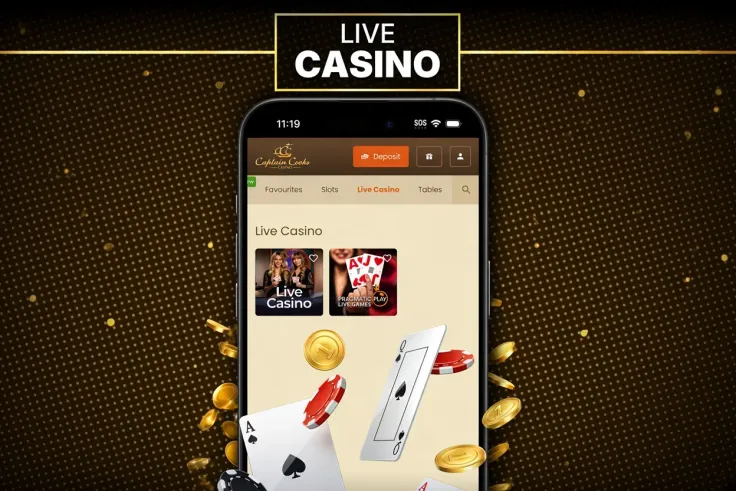
The mobile site is Captain Cooks Casino itself, not a cut-down companion. You reach the same casino from your phone that you reach from a laptop, and you can log in with the same details. If you are new, you can sign up from the phone.
The range includes slots and a live casino, so live dealer games are part of what Captain Cooks Casino offers. How each game looks on your screen depends on the game and your device. Slots are built around a single reel grid, so they sit comfortably in portrait or landscape. Live tables show more at once, including the video, the betting area and the chat, so they feel tighter on a small display.
A few practical differences between phone and desktop are worth knowing:
- The screen is smaller, so paytables, game rules and buttons take more scrolling and tapping to read.
- You are more likely to play in short sessions away from home, which makes it easier to lose track of time.
- Tapping a button by mistake is easier on a touchscreen, so slow down on confirmation screens, especially when you deposit.
- A phone connection can change as you move between Wi-Fi and mobile data, which matters for live games.
Before you start any game, open its information or paytable from inside the game. It tells you how the game pays, which features it has and what the return to player is. Read it before you place a stake. The same information is there on every device.
If you are picking a game page to read first, the games overview lists what is covered on this site. Live casino and table game pages explain the rules before you sit down.
Browser, iPhone app and Android

Browser (all phones). This is the default route. Open Safari, Chrome or whichever browser you normally use, go to Captain Cooks Casino through a link to the casino or by typing the name into the browser, and log in. Because there is no download, there is no update to keep track of: the site loads the current version each time you open it.
Use Add to Home Screen if you want a shortcut. It places an icon on your phone that opens the site, which saves you hunting for the address. It is a bookmark with an icon, not a separate app, so it behaves like the website.
iPhone. Captain Cooks Casino has an iPhone app as well. If you prefer an app, the iPhone app page explains it, and the general app page shows how the app options compare. Always get an app from Apple's App Store on your phone, and check that the publisher matches the casino you mean to play at. The browser route works equally well on an iPhone if you would rather not install anything.
Android. There is no Android app. Do not follow ads, messages or sites that offer an Android installation file for the casino, and do not install apps from unknown sources. A file from outside the phone's app store can carry malware or steal your login details. The Android page covers the options, and the answer is the same: use the mobile site in your browser.
A few habits make the browser route smoother:
- Keep your browser up to date so pages load and display correctly.
- Type the address yourself or use a link you trust, rather than a link from an unsolicited message.
- Check that the page shows the secure padlock symbol in the address bar before you enter your login details.
- If a page looks wrong or frozen, close the tab and reopen the site instead of tapping repeatedly.
Keeping your account safe on a phone
A phone is easier to lose and easier to hand to someone else than a computer, so protect it first. Set a passcode or biometric lock on the device and keep the screen lock time short. Do not leave a logged-in casino tab open when you put the phone down, and log out after a session if anyone else uses the device. Avoid letting your browser save the casino password on a shared or borrowed phone.
Public Wi-Fi in cafés, stations and airports is a poor place to log in or handle payments. If you have to use it, switch to mobile data for anything involving your account. Be cautious with messages that claim to come from the casino and ask you to tap a link and enter your details. Go to the site yourself instead.
Mobile data matters mostly for live games. Streaming video uses far more data than a slot, so check your plan before you play live tables over a mobile connection. A weak signal can interrupt a live round, so it is better to be on a stable connection before you join a table.
When you make a payment from your phone, check the amount and method on the confirmation screen before you tap. The deposits page explains the options, and the verification page explains what to expect if Captain Cooks Casino asks you to confirm your identity. Taking a photo of a document with your phone camera is usually the easiest way to send it, so keep the image clear and uncropped.
Because a phone is always with you, it helps to decide your limits before you play, not during a session. The account's own control tools let you set deposit limits and take breaks, and the safer gambling page lists them along with outside help. Setting them once on your phone is quicker than relying on remembering to stop.